
From card to Photos. Only the best.
Coming soon to the Mac App Store · Free · macOS 26 or later
Vaska is a free Mac app for going through the photos on an SD card or other memory card one at a time. Keep the best with a single key, reject the rest, and import only your keepers into Apple Photos. Nothing on the card is ever changed or deleted.
How it works
- Insert the memory card. Vaska shows the photos straight from the card. Already copied them to your Mac? Choose File → Open Folder.
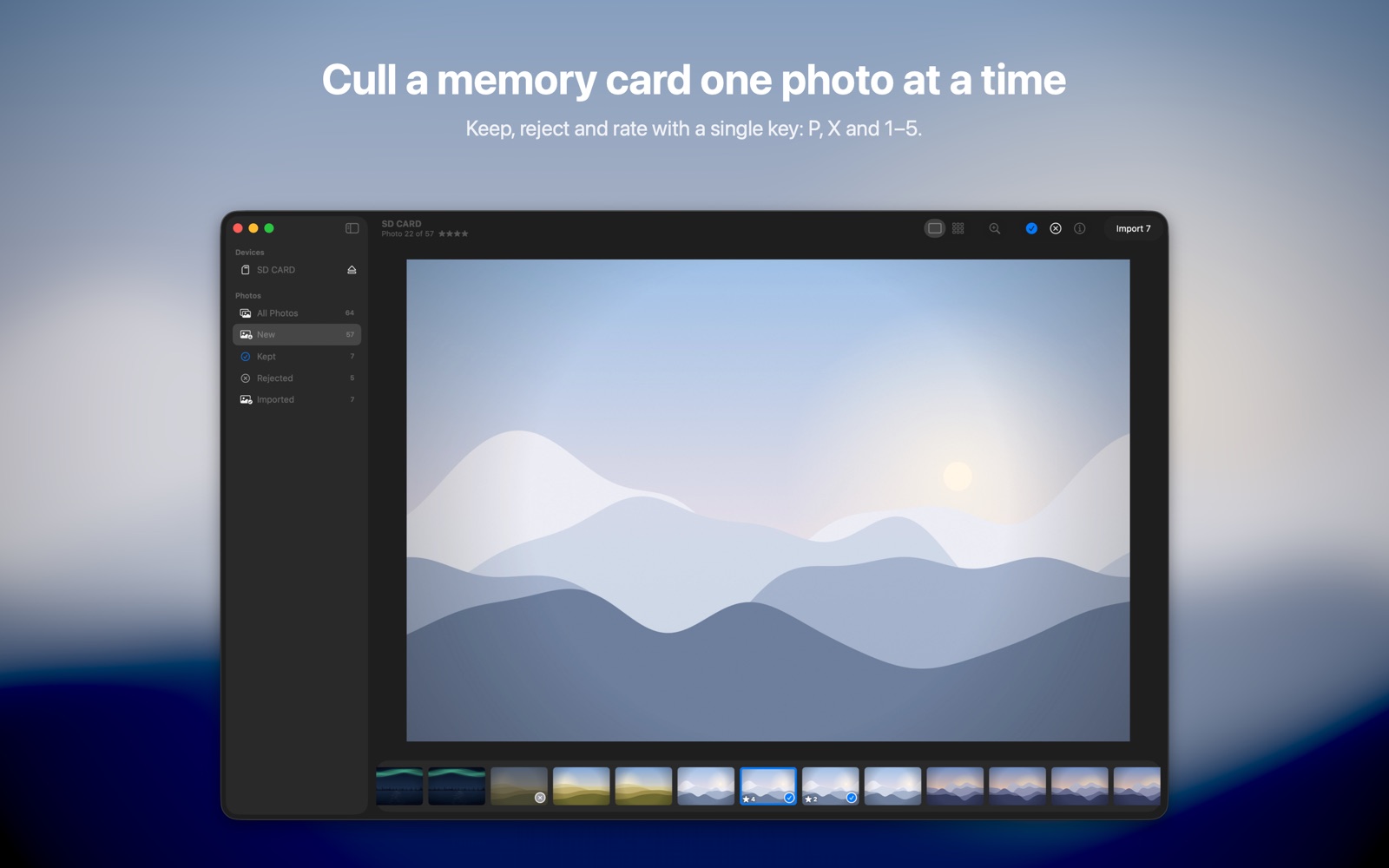
- Decide, one photo at a time. Press P to keep a photo, X to reject it and 1–5 to rate it. Press Z to zoom to 100% and check the focus.
- Import your keepers. Click Import and choose a new album, an existing album or just your library. Only the photos you kept go into Photos.
- Eject the card. Rejected photos stay on the card until you erase it in your camera.
Made for deciding
Each photo fills the window, with a filmstrip below. Keep, reject and rate from the keyboard, and Vaska moves on to the next photo by itself. Zoom to 100% with Z, a click or a pinch, and swipe with two fingers to go to the next photo. Every change can be undone.
Everything at a glance
A grid like the one in Photos, where kept, rejected, rated and already imported photos are clearly marked. Filters for new, kept, rejected and imported photos show exactly what’s left to do.
Straight into Apple Photos
Import into a new album named after the dates, an existing album or just your library. RAW+JPEG pairs are imported together as one photo, and photos that are already in your library are recognized, so you never import the same photo twice. Follow the progress in the sidebar and the Dock, and get a notification when it’s done.
Why not just import the whole card?
Importing everything fills your library — and your iCloud storage — with near-duplicates and blurry shots you’ll never look at again. The import in Photos is made for choosing among thumbnails. Vaska is made for deciding: one large photo at a time, at 100% when you need it, so only the keepers reach your library.
Prefer the built-in apps? Read how to import photos from an SD card to Photos on a Mac.
Your card stays untouched
Vaska only reads the card. It never changes, moves or deletes anything on it. No account, no ads, no in-app purchases and no data collection — read the privacy policy.
Questions and answers
Is Vaska free?
Yes. Vaska is free on the Mac App Store, with no ads, no in-app purchases and no account.
How do I transfer photos from an SD card to Photos on my Mac?
Insert the card in your Mac’s SD card slot or a card reader and open Vaska. Keep the photos you want with P, then click Import. Vaska adds them to your Photos library, in an album if you like. There’s also a step-by-step guide that shows how to do it with Photos alone.
Does Vaska delete photos from my memory card?
No. Vaska never changes or deletes anything on the card. Photos you reject simply aren’t imported. Erase the card in your camera when you’re ready.
Which cameras and file formats does Vaska support?
JPEG, HEIC and the RAW formats that macOS supports, which covers most cameras. RAW+JPEG pairs are kept together. Vaska works with any memory card your Mac can read, such as SD, microSD and CFexpress cards in the built-in slot or a card reader. It shows photos, not videos.
Does Vaska work with iCloud Photos?
Yes. Vaska adds photos to the Photos library on your Mac. If iCloud Photos is turned on, they sync to your other devices as usual.
Can I see which photos I’ve already imported?
Yes. Photos that are already in your library — imported with Vaska or with Photos itself — are marked as imported, so you never import the same photo twice.
Which Macs does Vaska run on?
Any Mac with macOS 26 or later.
Can Vaska open automatically when I insert a card?
Yes. Turn on “Open Vaska when a memory card is inserted” in the start window or in Settings.
The name
Vaska is Swedish for panning for gold: the gravel is washed away and the nuggets are left. That’s what Vaska does with your photos.
Support
- Getting started. Insert a memory card, or choose File → Open Folder. The first time, click Allow in the panel that opens on the card.
- Rejected photos are never imported and stay on the card. Erase the card in your camera when you’re ready.
- Import everything: choose Image → Keep All Unmarked, then click Import.
- Already imported photos are under All Photos and Imported in the sidebar.
- Open automatically: turn on “Open Vaska when a memory card is inserted” in the start window or in Settings.
- Keyboard shortcuts: choose Help → Keyboard Shortcuts in Vaska.
Questions, ideas or problems? Write to support@kynne.se.